
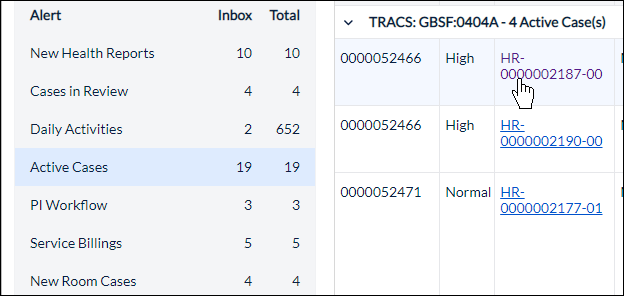
Opening an active case from your dashboard allows you to to check animal histories, update the animal profile, or change the plan.
Your list of options will appear beneath the Table of Contents.
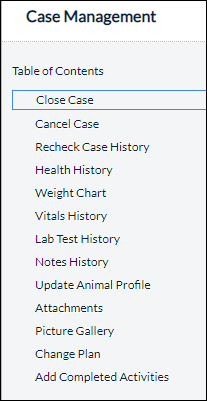
- Close Case: Allows you to close the case if the animal no longer needs treatment. Click Close Case on the page to complete the closure. Scheduled activities that have not yet been completed will be removed from the calendar, while completed activities will remain part of the animals permanent health record.
- Cancel Case: Also removes scheduled activities but keeps completed ones as part of the animal’s health history.
- Recheck Case History: Check the health of the animal and make notes and/or make changes to the treatment plan. clicking the Case ID hyperlink will open recheck notes for any completed rechecks.
- Health History: Provides access to three animal health reports: Preview, Preview Chronological History and Preview Animal Record.
- Weight Chart: Weights can be entered either via a weights and vitals case or whenever vitals are entered in the Objective Assessment section of a case. All recorded weights will display chronologically in the chart.
- Vitals History: Any vitals that have been entered for the animal will display in the Vitals History in chronological order.
- Lab Test History: Any lab tests that have been ordered for the animal will display in the grid. If notes or results were entered, they will display as well.
- Notes History: Notes History only applies to cases that were submitted to the PI for review before the treatment plan was started. Notes history provides a record of the PI’s response to their case review.
- Update Animal Profile: Allows the animals profile to be updated. For example, a tattoo number can be added once an animal has completed this procedure.
- Attachments: Any document or image that was attached to this case or any previous case for the animal will show in the Attachments grid:
- Picture Gallery: Any image file that has been attached on the attachments page can be viewed in the picture gallery. If there are multiple pictures, they can be viewed as a slideshow with standard image controls (forward, back, etc.)
- Change Plan: Changing plan will cancel the current case and create a new case.
- Add Completed Activities: Activities, Notes, Results, and a Completion Date can be added in the fields on this page. To complete, click Save Completed Activity.