
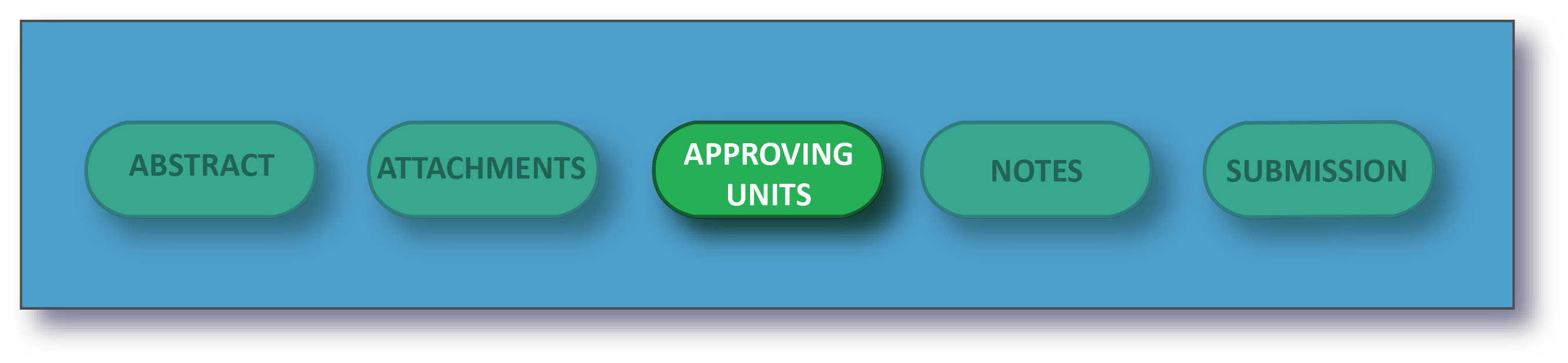
After adding attachments to your proposal, you will be prompted to add and order your Approving Units.
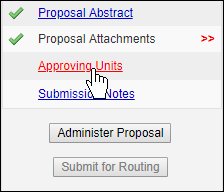
This section of the proposal represents the list of Units, Centers, or Schools that must approve the proposal before it can be routed to the Central Admin Office.
List of Approving Units
The List of Approving Units is created automatically from the units added during the proposal creation process. The Award Admin Unit (shown as Admin Unit) is always listed first and cannot be changed or removed. Other units are added if a member of the Research Team is from that unit, or as a result of being an Affiliated Center or Institute. The list shows why a given unit was added in the Role(s) column.
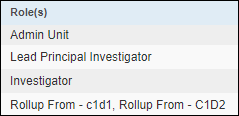
If you see Rollup from in the Roles column, and you don't think that unit should be included, contact your Central Admin Office.
Setting the Routing Order
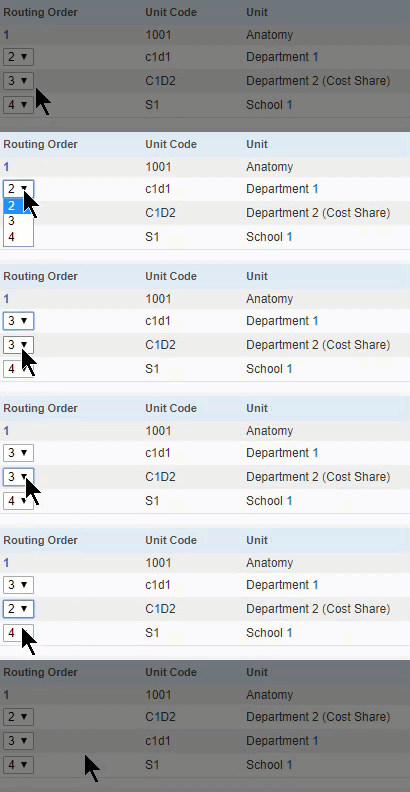
The routing order for the listed units can be re-ordered by changing the number in the drop-down menu beneath Routing Order. It can be made sequential or concurrent; that is, you could have the order 1, 2, 3, 4 if the units must approve in a strict order, or 1, 2, 2, 4 if the middle two could approve at the same time. If a unit is currently 4 and you want it to be 2, simply select 2 and click out of the selection box. The unit list will re-order automatically.
Modifying the Unit List
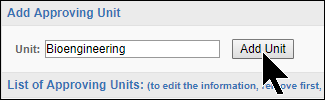
You can add additional units by clicking the field beneath Add Approving Unit and choosing a unit from the alphabetical list. You can also search for the Unit Code or Unit Name. Upon clicking Add Unit, the unit will be added with the role Other Approving.
If a unit has a Remove link next to the role, you can remove it by clicking the link. (To edit a listing, remove and re-add it.) This is generally only possible if it has been added as Other Approving. Other units are mandatory approvers.
If one of the units is incorrect, note the Role(s) listed for the unit. You will need to edit or remove and re-add the Research Team member or unit with that role in order to modify the routing list.
You may need to refresh your browser screen if you have made changes to your routing chain.
Authorizing the Unit List
To authorize the list and complete this section, click  . Do not authorize the list until you are comfortable that it is correct. If you don't think a unit should be included, contact your Central Admin Office.