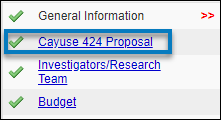
Upon filling out General and Sponsor Information when creating your proposal, you will see an option to pair your SP Classic proposal with a . During proposal creation, only one of these options is active: Create a Paired Proposal. Upon saving this page, the pairing option will also be active.
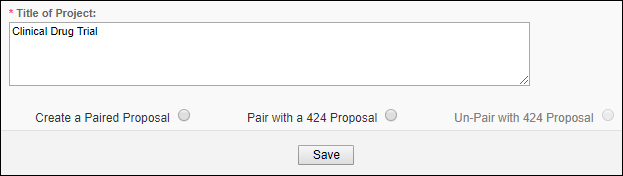
We recommend building your proposal in SP Classic, but proposals can also be paired after creation.
When the proposals are linked, routing in Proposals (S2S) is turned off. If the proposal is a federal proposal, the Proposals (S2S) proposal will be the proposal submitted to Grants.gov.
Creating a New Paired Proposal
- Once you have filled out all the basic information required to create your proposal, click Create a Paired Proposal.
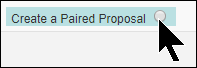
- Depending on your settings, Proposals (S2S) will open in a new window or tab, and the Create Proposal dialog box will pop up.
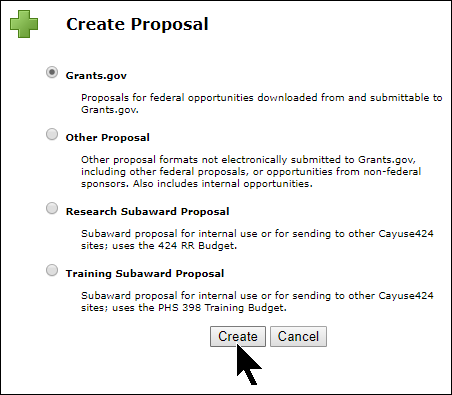
- The SP Classic Short Project Name becomes the Proposals (S2S) proposal's Proposal Name, and the Sponsor Deadline is the Due Date. This information is carried over from SP Classic for your convenience, and you can change it as you would for any Proposals (S2S) proposal. This will not affect the linkage between the proposals.
- Follow the steps for creating a Proposals (S2S) proposal.
Once you have completed the proposal creation in Proposals (S2S), you'll see your newly-created proposal with  next to the proposal name at the top . Clicking on the icon will direct you back to SP Classic.
Pairing an Existing Proposal from Proposals (S2S)
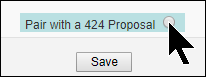
- If you know that there is already an existing Proposals (S2S) proposal for your SP Classic proposal, click the pairing option after saving the General Information page.
- A dialogue window will show you a list of Proposals (S2S) proposals that you can pair with. Click on the proposal you want to link.
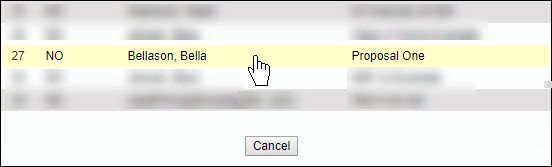
You will now be able to access the Proposals (S2S) proposal by clicking on Proposals (S2S) in the side menu.