Awards can be modified by a Cayuse SP System Administrator, SP Award Administrator, or SP Award Editor if needed. Please make sure you have modification reasons setup prior to making modifications.
Modifying an Award
-
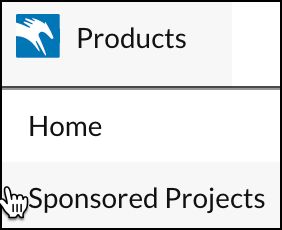
From the main dashboard, click Products, then click Sponsored Projects.
-
Click Awards.

-
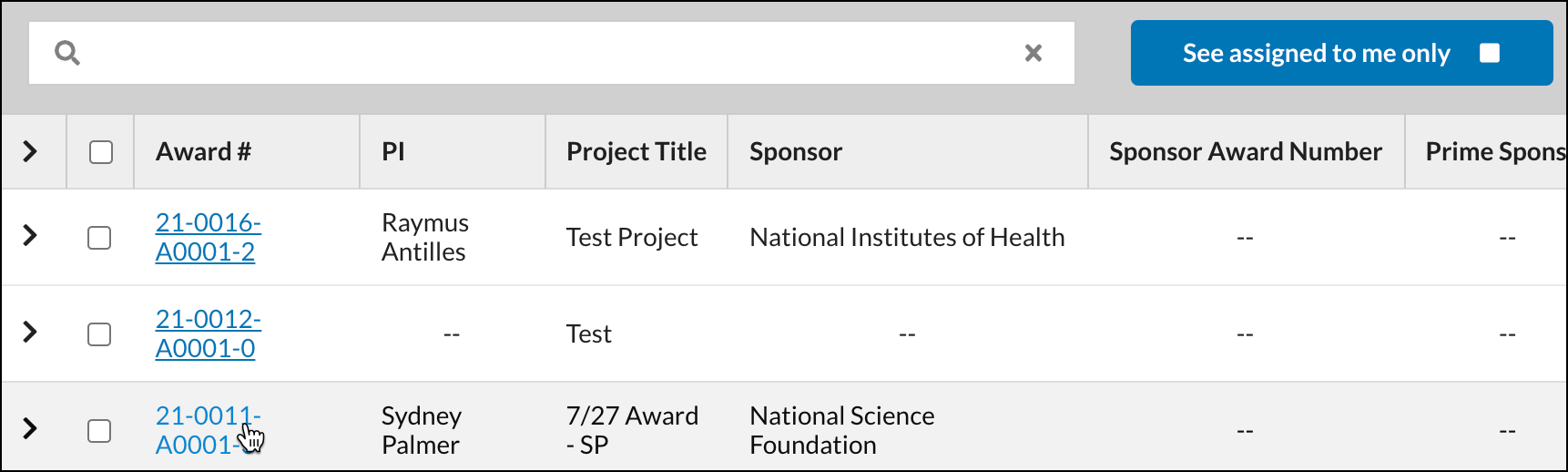
Click on the link to open the award needing to be modified.
-
In order to modify an award, the status must be set to either 'Active' or 'In Closeout'. If needed, update the status by using the drop-down status menu.
- You'll be prompted to add a comment indicating why you are updating the status. Click Save.
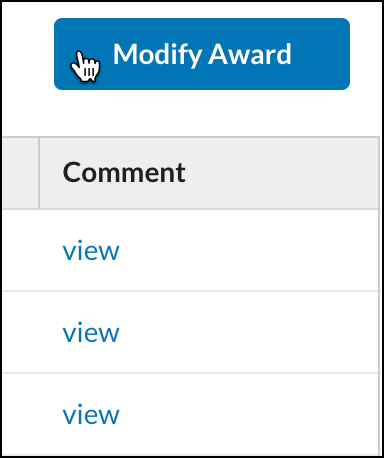
- Click Modify Award.
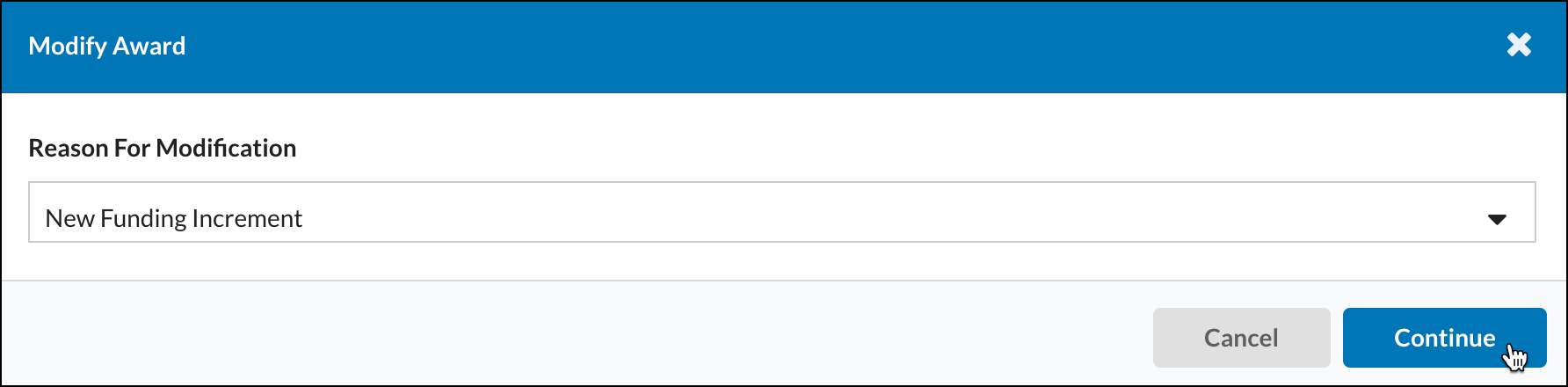
- Select a reason for the modification, then click Continue.

Entering Draft Mode
Once you enter draft mode, you will see the following:
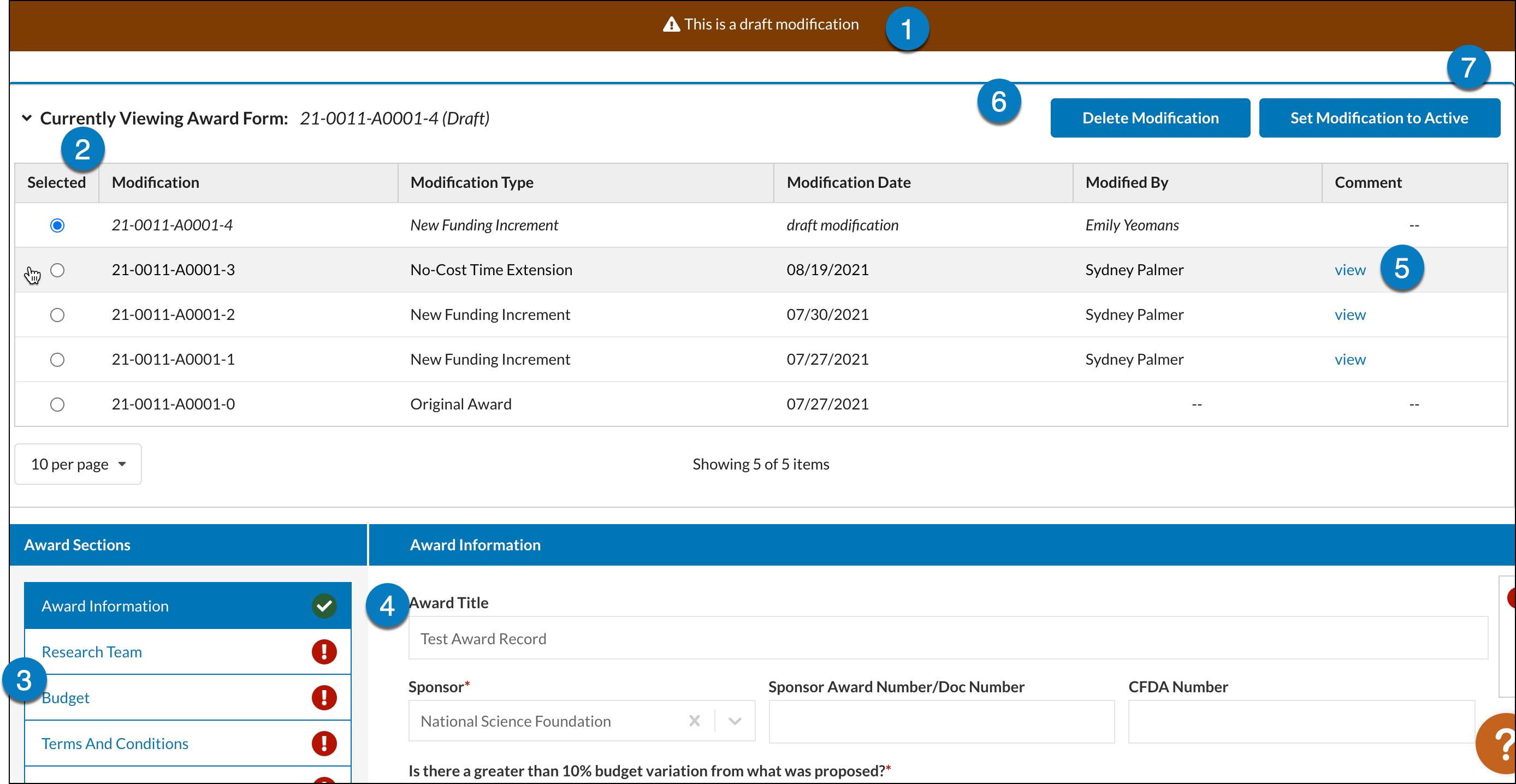
- Notification: Text indicating you have entered draft modification mode.
- Currently Viewing Award Form: Displays all prior modification versions of the award. Select the version you wish to view or stay on most recent to continue making modifications.
- Award Sections: The award sections are configured through the Form Manager by a System Administrator. Each section can be selected to view the applicable form objects.
- Award Form: The form is where users fill out the award information, and is configured through the Form Manager by a System Administrator.
- Comments: Click the link to view comment related to the modification.
- 'Delete Modification' Button: If you wish to cancel the modification changes, click this button to delete your modification. The most recent active version of the award will be restored.
- 'Set Modification to Active' Button: If you wish to proceed with the modification changes, click this button.
Setting Modification to Active
Once you click the 'Set Modification to Active' button, you will be prompted to review the reason for modifying the award, add a comment, and then decide if the modification needs to be routed or not.
- Selecting Cancel on this modal will return back to the draft modification.
- Selecting Set to Active will activate the modification and leave the award in its current status.
-
Selecting Route for Review activates the modification, changes the award status to In Review & Negotiation, and routes the record for review.
Please note:
- This Route for Review button is only visible to users with the SP System Administrator or SP Award Administrator role.
Users with the SP Award Editor role can open the modal but will not see the Route for Review button.
Re-routing for Review
Even if the Set to Active button was selected, the award modification can still be routed by manually moving the award back to the In Review & Negotiation status and then clicking Route for Review.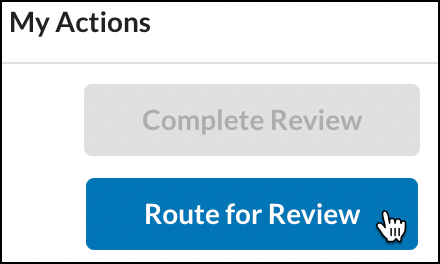
Regardless of how the routing was initiated, while the latest award modification is in the routing process, a banner will be displayed indicating that the latest modification is under review.
Viewing Award History
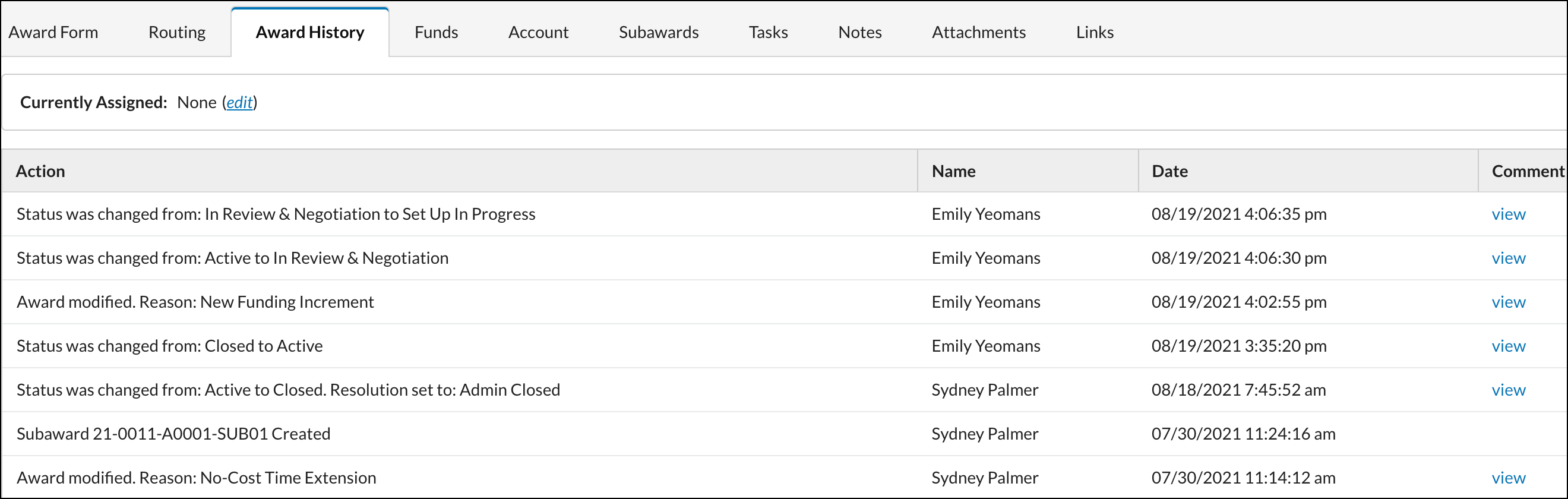
Click on the Award History tab to view records of all updates that have been made to an award.