
Campaign periods help COI System Administrators manage campaign start and end dates and communicate campaign timing with Outside Interests Disclosees at your institution.
As a COI System Administrator, only your role can access the settings for Campaign Periods and Emails within Disclosure Campaign Manager and you'll be able set up the following:
- Set up and adjust the campaign period and customize the timing of reminder emails and notifications.
- Set up Ad Hoc Task Notifications.
- Customize the text of some COI Disclosure email templates (must be set up in Admin module>More>Email Templates by COI System Administrators or COI Templates Managers).
Please note: Email reminders go out to all users with the COI Disclosee role, regardless of whether or not they have already completed their Annual COI Disclosure.
Setting Up Disclosure Campaigns and Campaign Periods
By setting start and end dates and adjusting email reminder settings, you are able to control communication with your COI Disclosees. You may also set a customizable COI System Task Notification by utilizing the Admin My Tasks notification feature.
1. In the Outside Interests More menu, click on Disclosure Campaign Manager, under Settings.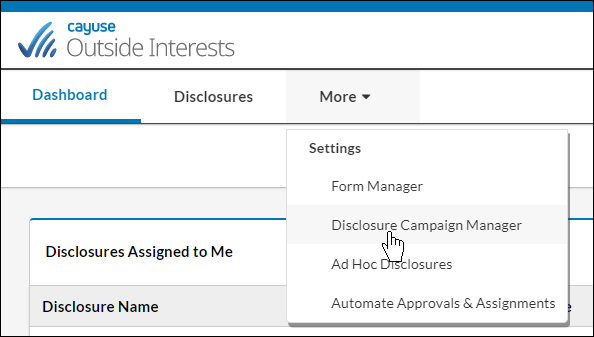
2. Set your campaign dates. Adjust the start and end dates to correspond with the start and end of your campaign period. 
3. Understanding Campaign timing. Campaign emails are sent at 4:30am PST (7:30am EST), one day after the campaign start date. The campaign notifications should be set up at least one day prior to the date you want them to be emailed.
Here are some examples of how you may choose to set up your notifications:
If your campaign starts on Wednesday, March 15th, and you have selected the Reminder Emails to be sent Weekly on Wednesday, the first set of emails will go out the following week on Wednesday, March 22nd.
If you would like the first emails to be sent out on Wednesday, March 15th, your campaign start date should be Tuesday, March 14th with Reminder Emails set to be sent Weekly on Wednesday. This way, the first set of emails will be sent on March 15th as desired.
You also have the option to set Reminder Emails to be sent out Every weekday. Using the examples above, if you set the start date of the campaign for Tuesday, March 14th and set the Reminder Emails to be sent out Every weekday, this will ensure emails are received on Wednesday, March 15th and each weekday thereafter.
4. Set reminder emails and task notification.
You can set reminder emails to go out on a regular schedule. There are three types of COI email reminders and one My Task notification option.
-
Campaign Period Reminder (discussed above in step number three): This email is sent out regularly to remind Disclosees that the campaign is underway. Choose from the following options:

-
Final Week of Campaign Reminder: This email is sent out during the last 7 days of the campaign. Choose from the following options:

-
Past Due Reminder: This email is sent out after the End Date of the Campaign. You may disable any of these settings by selecting “No email reminders from Cayuse COI”. Choose from the following options:

5. COI System Task Notification. COI is connected to the Admin Task Notification feature. This is managed by a Platform Administrator role under Admin → More → Email Templates.
Setting Ad-Hoc Task Notifications
When you set the New ad-hoc task created Email Template to Active (Yes) in Admin, a one-time task notification will be automatically sent to every COI Disclosee alerting them that they have a COI Annual Disclosure task to complete when the campaign start date arrives.

- Task Notifications are sent only once to each COI Disclosee. If new users are granted the role of COI Disclosee mid-way through your Campaign Period, they will receive a task notification as well.
- Task Notifications are only sent out between the start and end dates defined in your COI Campaign Period. If you run multiple campaigns during a calendar year, tasks will be sent for each unique campaign.
- You may disable the Task notification by toggling the Active button to Off.
Customizing COI Disclosure Email Templates
The text of some COI Disclosure emails can be customized, including the following templates:
COI Ad Hoc Disclosures: Sent to an individual when the compliance office asks them to complete a one-off (ad hoc) disclosure outside of the regular annual campaign. It invites them to log in and complete the requested disclosure.
COI Annual Disclosure Campaign Task Email: Sent to disclosees during an annual disclosure campaign to let them know they have an annual disclosure to complete. It prompts them to log in and submit their yearly disclosure before the deadline.
COI Disclosure Action is Needed: Sent to a disclosee when a disclosure has been created for them or otherwise requires their attention. It instructs them to log in and complete the required disclosure.
COI Disclosure Is Due: Sent to a disclosee as a reminder that their disclosure is approaching its due date. It encourages them to log in and submit it before the deadline.
COI Disclosure Is Past Due: Sent to a disclosee after the disclosure deadline has passed and the disclosure has not yet been submitted. It urges them to complete it as soon as possible.
COI Disclosure Needs Review: Sent to the assigned reviewer, notifying them that the disclosure is ready for review.
COI Disclosure Resolved: Sent to a disclosee after their disclosure has been fully reviewed and resolved. It includes the final decision or outcome.
COI Disclosure Submission: Sent to the assigned reviewer team when a disclosee submits a disclosure, notifying them that a new submission is available for review before a reviewer has been assigned. More than one reviewer may receive this notification since any reviewer can claim the disclosure.
COI Return To Disclosee: Sent to a disclosee when a reviewer returns their disclosure for additional information or corrections. It may include comments explaining what needs to be updated.
Notice of COI Disclosure Assignment: Sent to a reviewer to notify them that a specific disclosure has been assigned for review.
Note: Similar notifications are sent at different points in the workflow.
COI Disclosure Submission is sent before a reviewer is assigned.
Notice of COI Disclosure Assignment and COI Disclosure Needs Review are sent after a reviewer is assigned.
COI Return To Disclosee is sent when a reviewer requests additional information.
COI System Administrators or COI Templates Managers can get started on setting up the customizations via Admin module>More>Email Templates.