
In order to bulk send invoices for un-invoiced items, you will need to access one of the following reports:
Agreement Expense Invoicing Report
Access this report to send bulk invoices for un-invoiced Agreement Expense items.
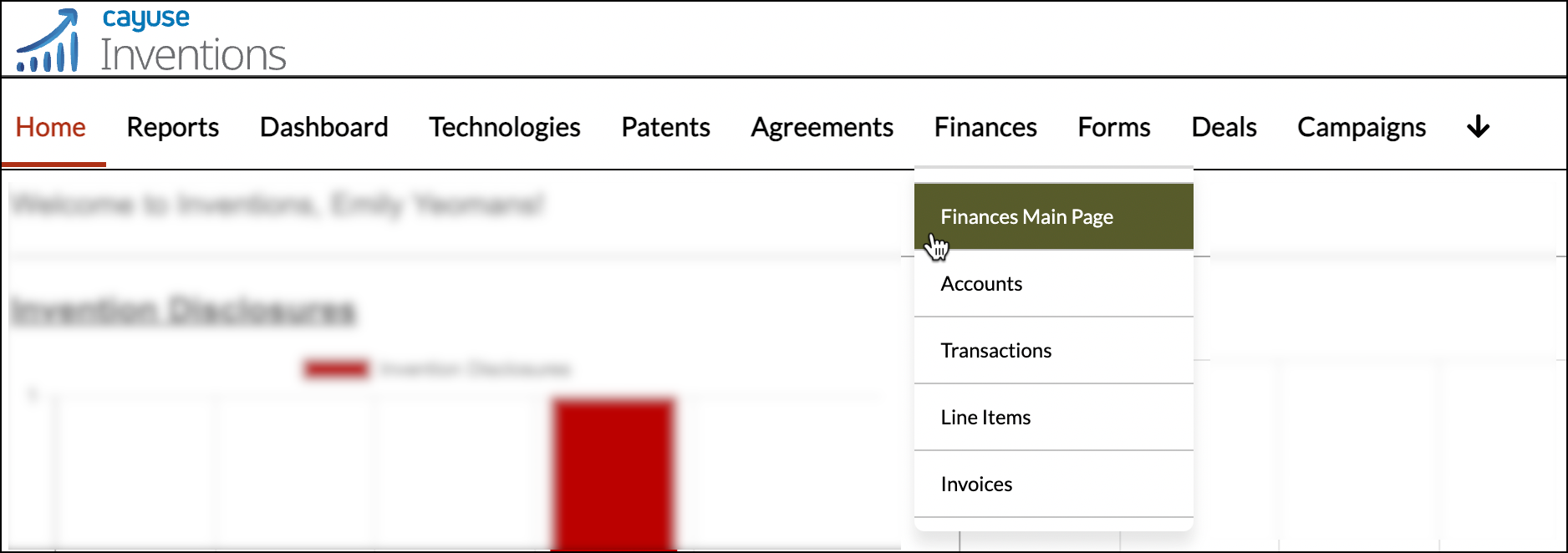
- Click on the Finance tab in the navigation header and then click on Finances Main Page.
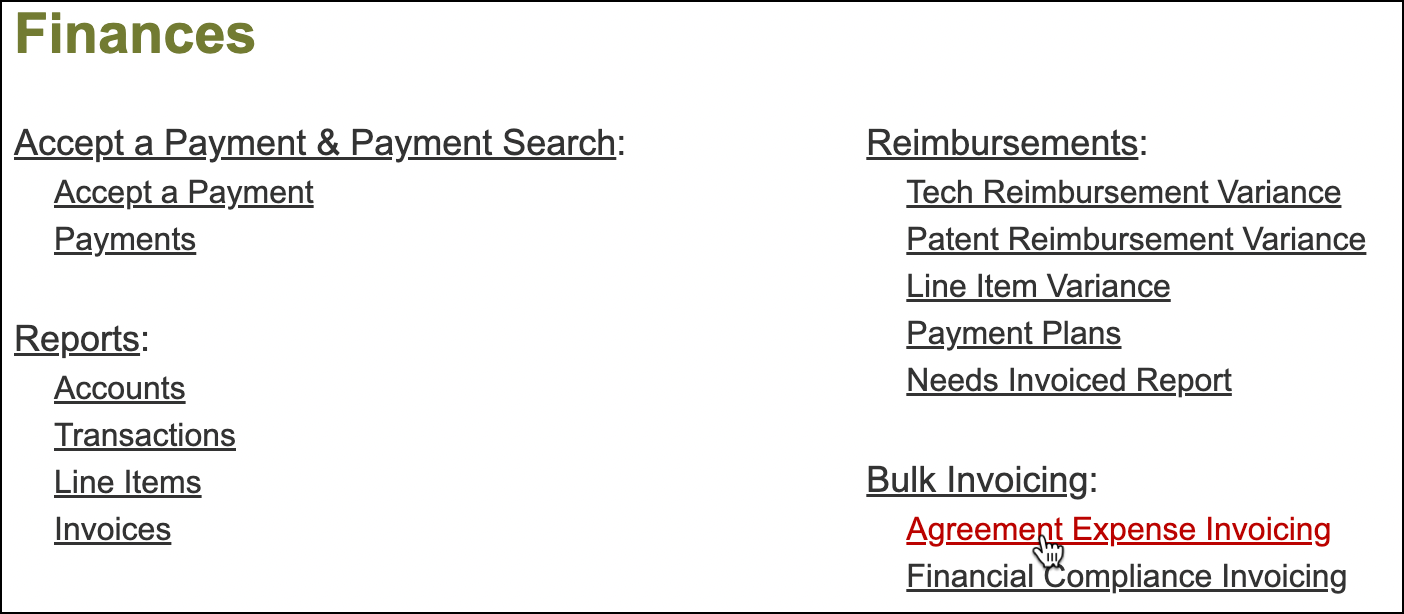
- Scroll down to the Bulk Invoicing section. Click on Agreement Expense Invoicing.
- The following default filters are set in the report, ensuring that all necessary information is included in emailed invoices:
- Agreement Status: Active, Amended, Renewed, and Under Confidentiality
- Invoicing on Hold: No
- Agreement Reimbursable Expenses: Positive values
- Send to Billing Contacts: Non-blank values only
- Send to Licensees: Non-blank values only
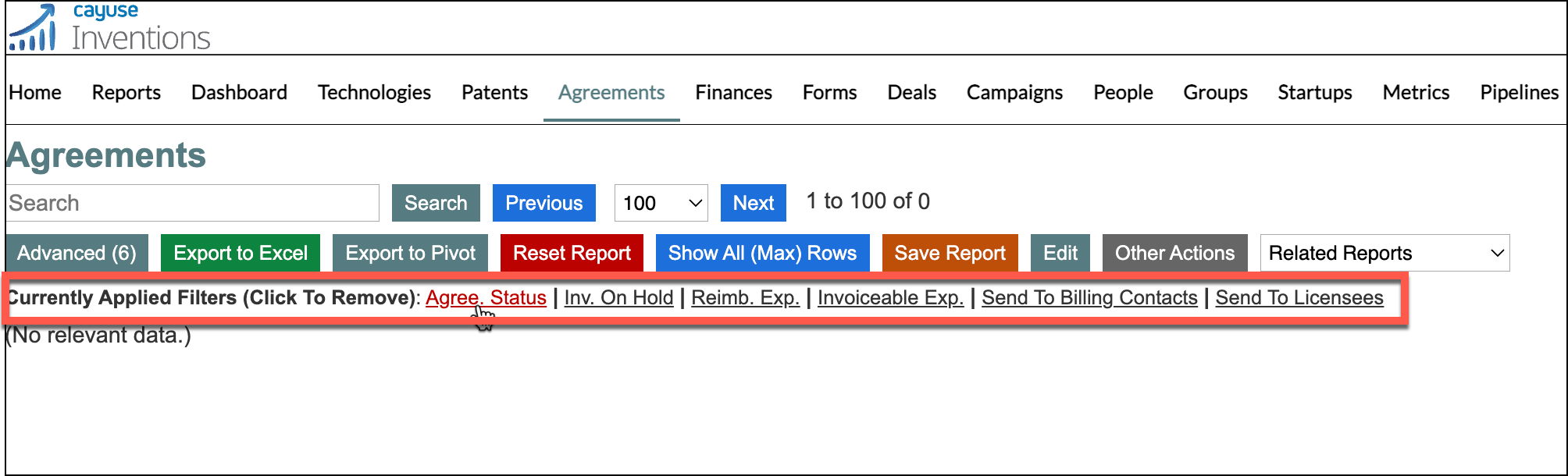 Filters can be removed by clicking on the filter link (see example image above). Please note: Certain records can be removed prior to the emailing process from the Confirm Invoice Details page.
Learn how to generate invoices by scrolling to the Generating Bulk Invoices section below.
Financial Compliance Invoicing Report
Access this report to send bulk invoices for un-invoiced Financial Compliance items.
- Click on the Finance tab in the navigation header and then click on Finances Main Page.
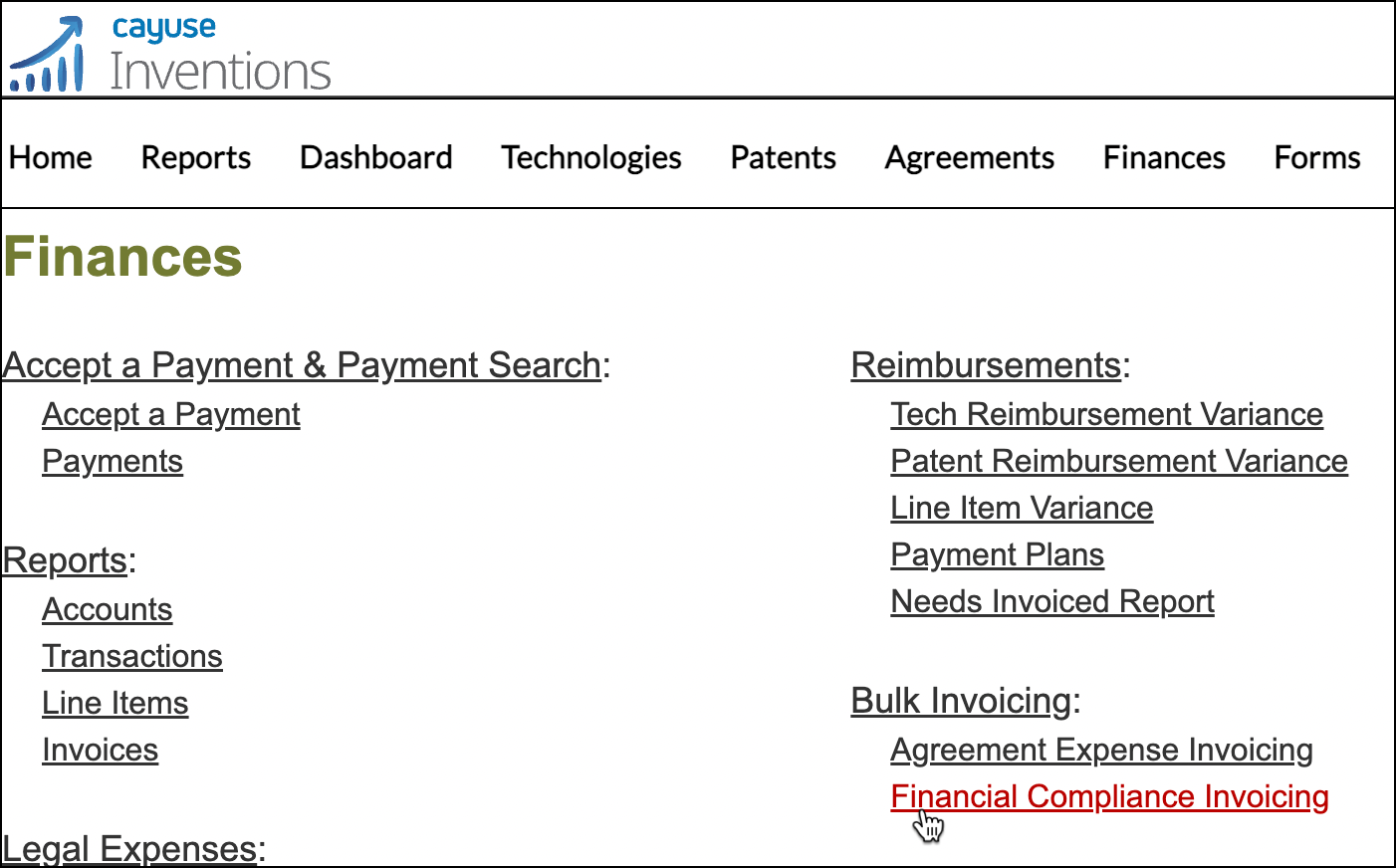
- Scroll down to the Bulk Invoicing section. Click on Financial Compliance Invoicing.
- The following default filters are set in the report, ensuring that all necessary information is included in emailed invoices:
- Agreement Status: Active, Amended, Renewed, Under Confidentiality
- Compliance Type: Revenue and all revenue sub-types
- Compliance Status: Active, Past Due
- Compliance Due Date: Current Date to 60 days
- Compliance Amount Due: Positive values only
 Filters can be removed by clicking on the filter link. Please note: Certain records can be removed prior to the emailing process.
Generating Bulk Invoices
From the Financial Compliance report or Agreement Reimbursement report, you can generate bulk invoices for review prior to sending.
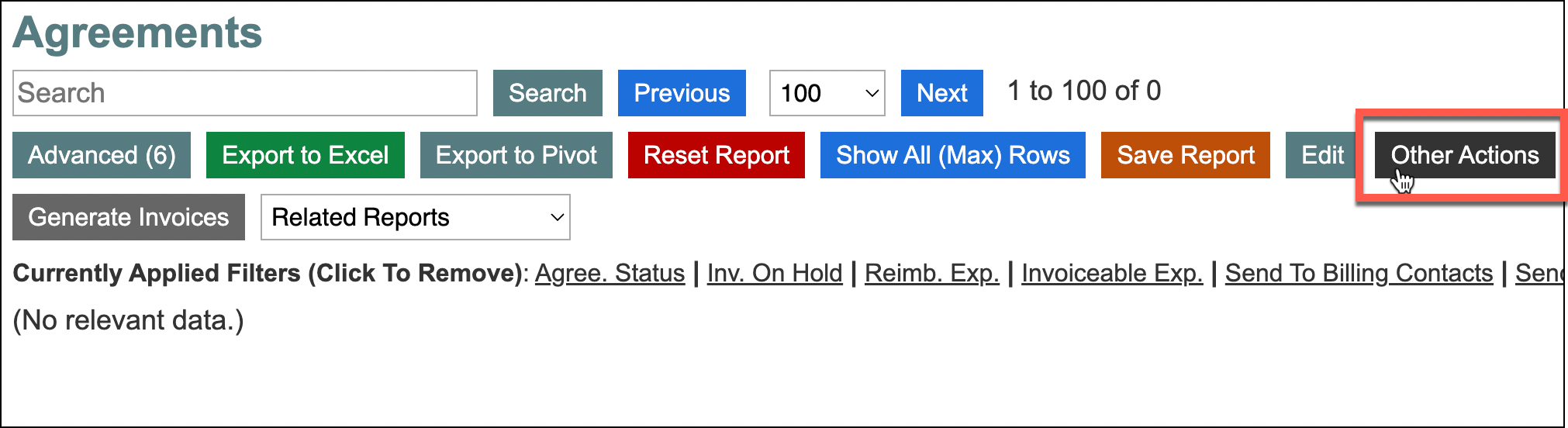
- Click on Other Actions at the top of the report.
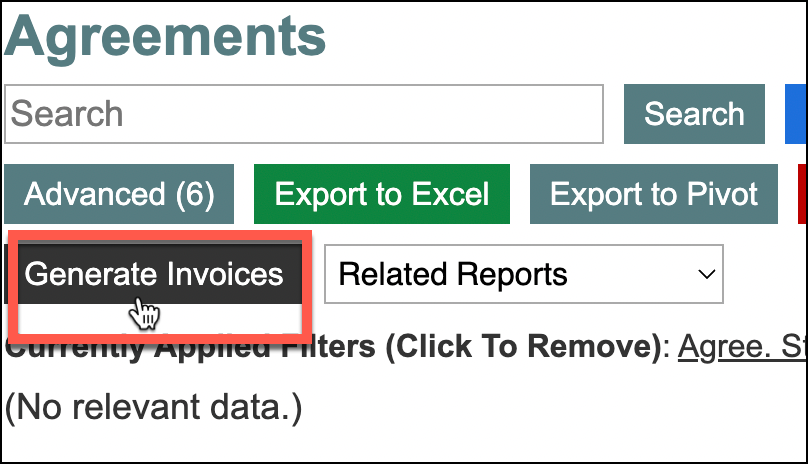
- Click on Generate Invoices.
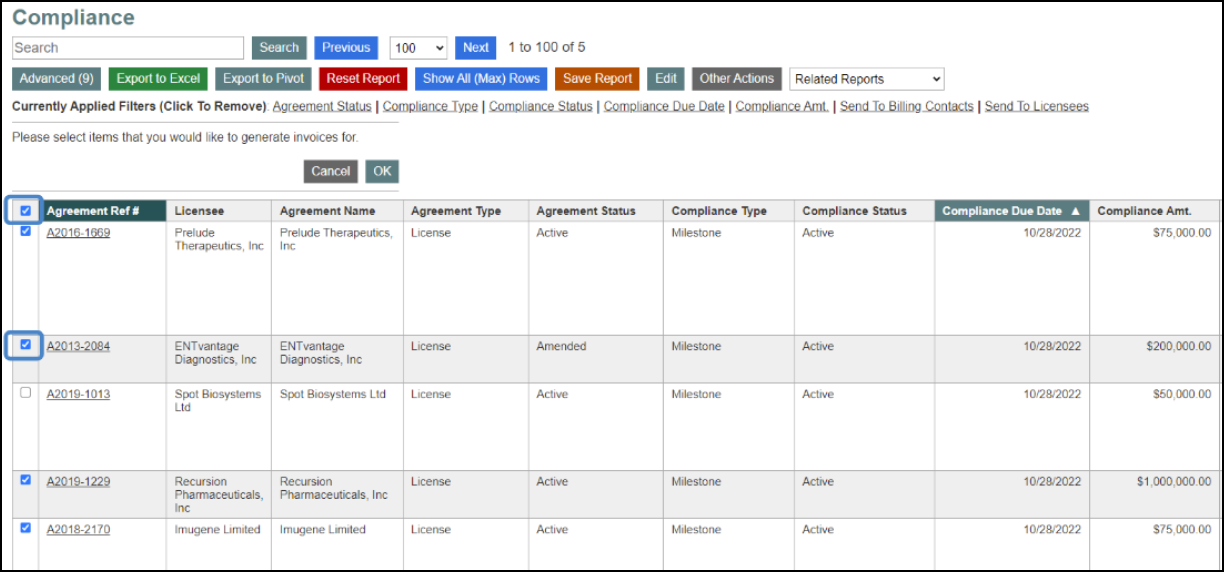
- Checkboxes will appear for each row listed in the report.
- To select all, click the top checkbox in the column header.
- To select specific rows, choose the checkboxes listed next to each row that you want to generate invoices for.
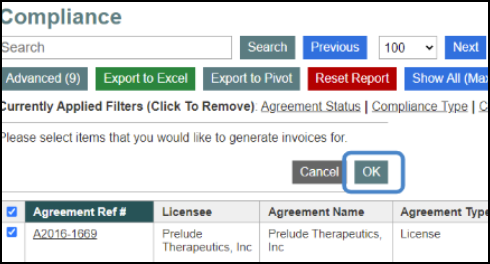
- Click OK.
You will be directed to a new webpage called Confirm Invoice Details where you can view a list of un-invoiced items and send invoices in bulk.
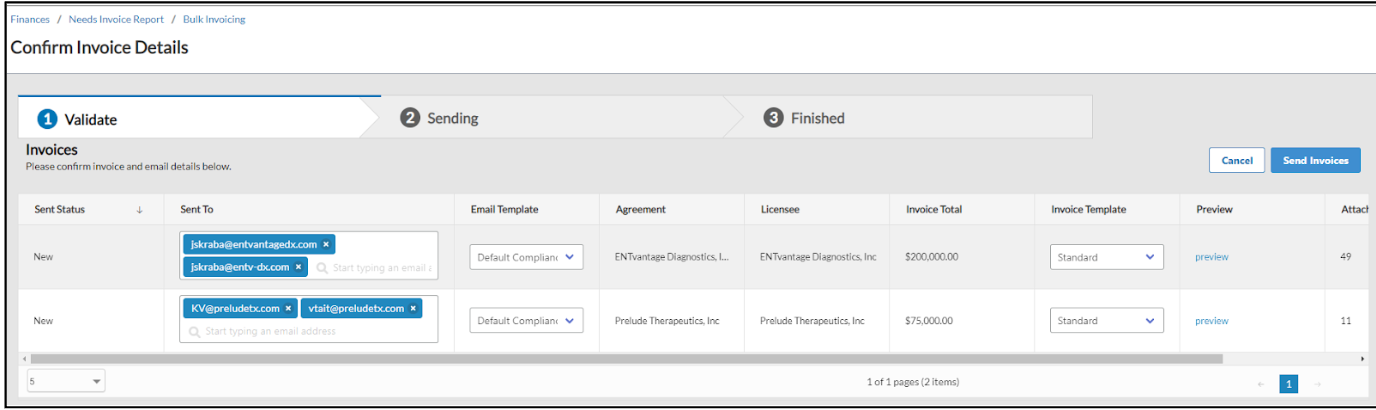
This page has default columns set. Scroll below to learn more about the default columns and how to use them.
Sending Invoices
Once all records have been reviewed on the Confirm Invoice Details page, you will be ready to send your invoices in bulk.
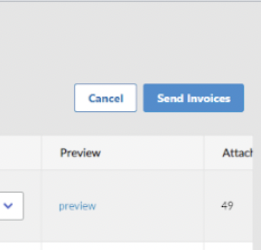
Click on Send Invoices to begin your bulk invoice send.
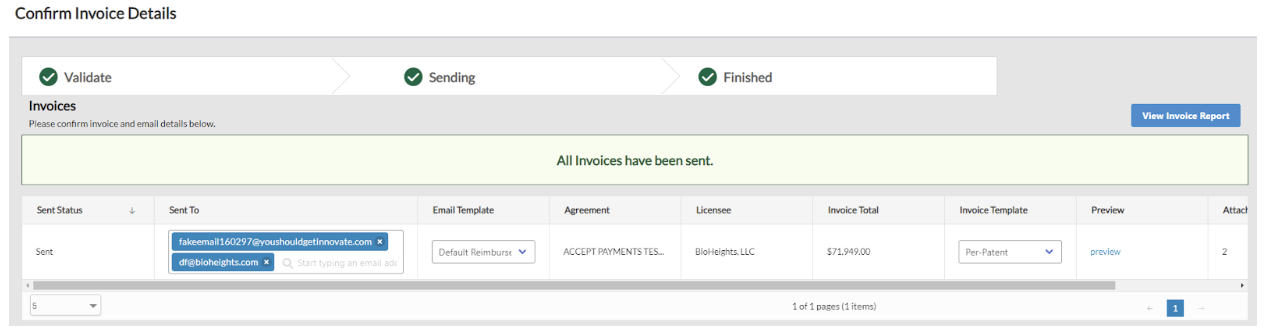
If sending is successful, a green notification banner will appear on your screen indicating that All Invoices have been sent.
If any invoices fail to send, a red notification banner will indicate the number of invoices that could not be sent. The records that were not sent can be accessed within the corresponding Bulk Invoicing report on the Finances main page.
Default Columns
The Confirm Invoice Details page is preset with the following default columns.
Sent Status
This column identifies the current status of the invoice.
- New: Newly generated invoice that has not been sent to recipients.
- Not Sent: If the Cancel button is selected after clicking on Send Invoices, the email job will be canceled immediately and any invoices that were not sent in the process will receive this status.
- Error: If an error occurs (for example, if there’s an invalid email address), the invoice will receive this status.
Sent To
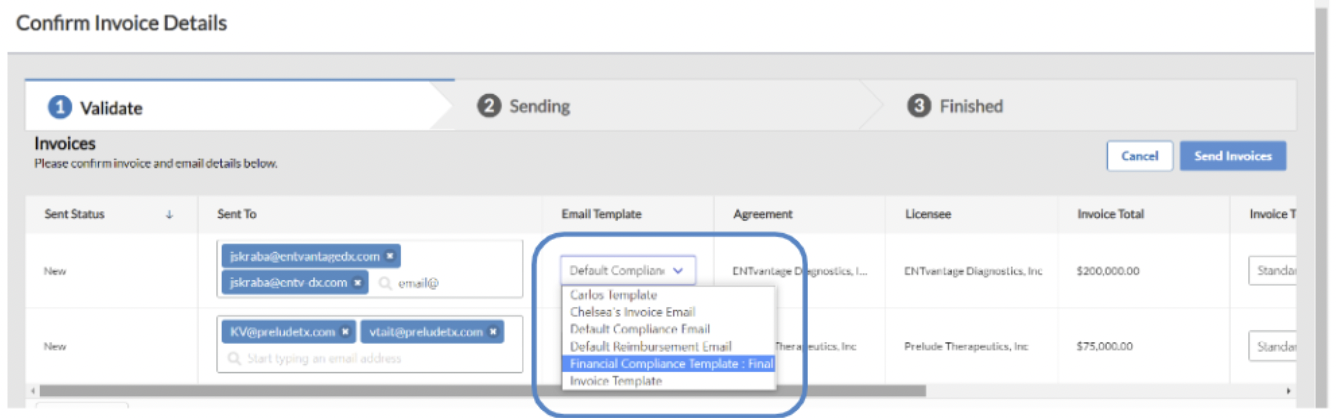
This column includes all emails pulled from either the Billing Contact and/or Licensee contact within a record. Emails in this column can be edited, allowing you to add or remove email addresses.
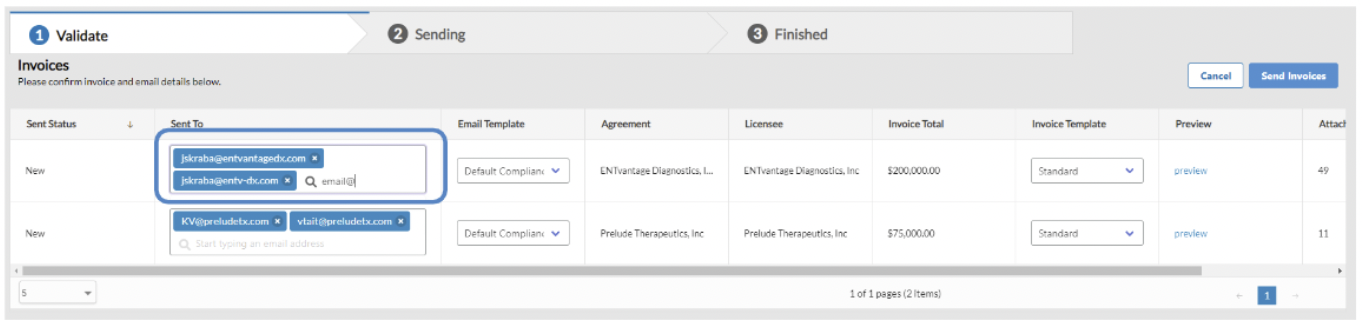
Email Template
This column displays the name of the template selected from Settings > Manage My Templates. You can manually select a different template to be sent for an individual invoice by choosing an option from the drop-down menu.
Agreement
Displays the name of the Agreement associated with the invoice.
Licensee
Displays the name of the Licensee associated with the invoice.
Invoice Total
Displays the total amount of the invoice.
Invoice Template
This column displays the default invoice PDF format selected from Settings > Manage My Templates. You can manually select a different template to be sent for an individual invoice by choosing an option from the drop-down menu.
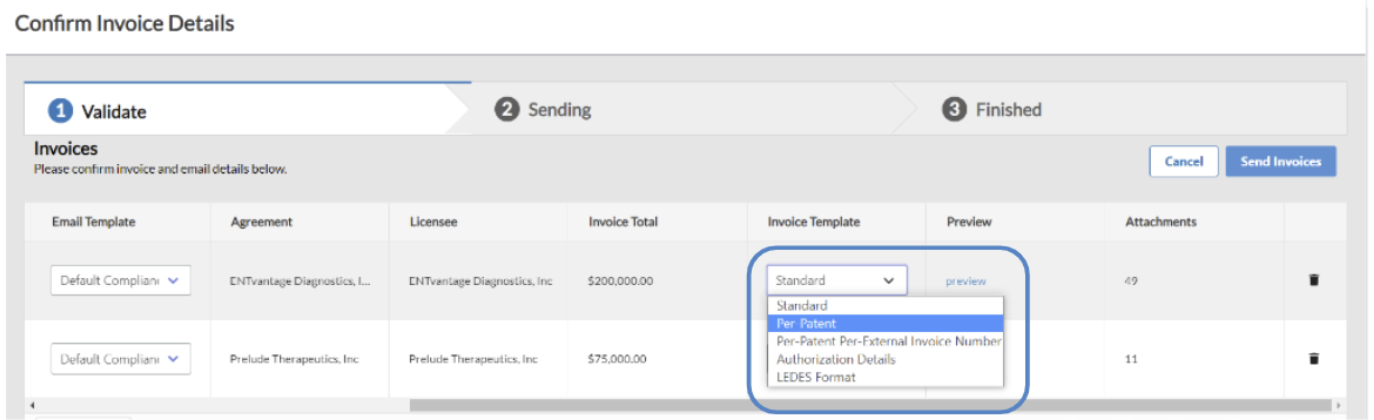
Preview
Click on preview to see what the invoice will look like before sending it to recipients.
Attachments
All attachments associated with the agreement are included in this column. These cannot be added or removed. If attachments need to be excluded, you will need to first remove them from the Agreement Record.
Delete
If you notice an error and wish to delete an invoice prior to sending, click on the trash can icon on the far right of the screen. If deleted, the record will revert to its prior state and will display in the corresponding Bulk Invoicing report.
The Cancel button at the top of the screen will redirect you to the Bulk Invoicing report.