
When creating forms, it is important to understand the Key and Label fields within form questions.
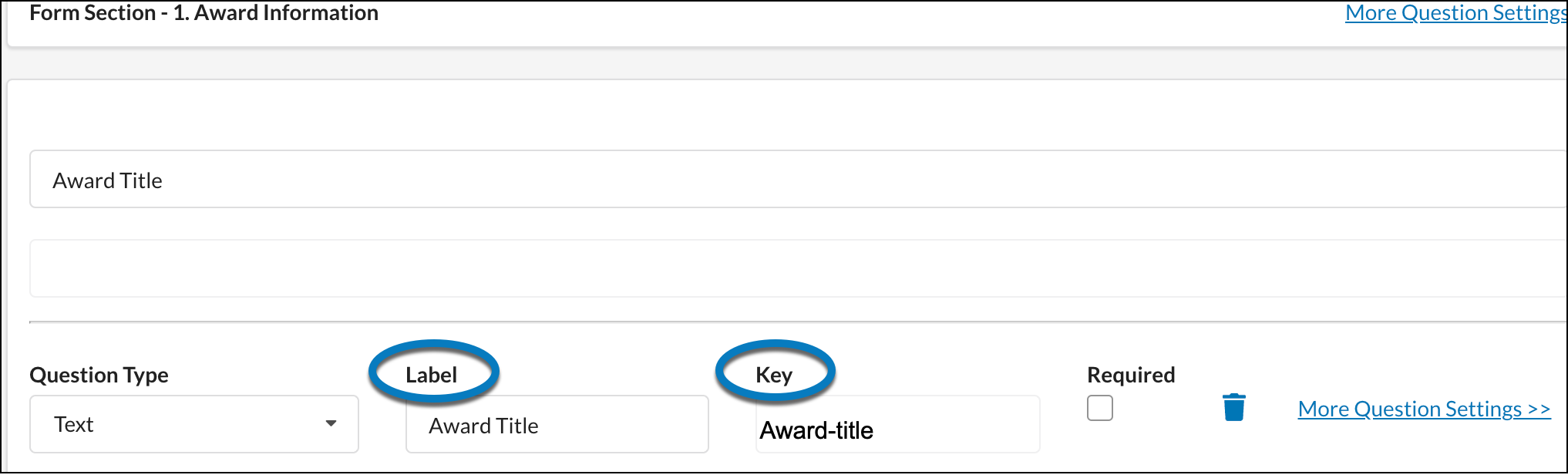
What is a Key?
When creating forms, questions are added that users will eventually fill in with text when completing the form. The answers need to be reportable outside of the form. Answer data needs to show up on the dashboard, which is called via the public APIs, or displayed in the reporting tab. In order to display this data, questions needs to have a unique identifier that never changes.
In the Simplified Form Builder, this identifier is called a Key.
Using the identifier, or Key, we can integrate our forms with other internal and external systems and create more a flexible system. We can also allow users to change the text, description, or label without impacting reports or integrations.
What is a Label?
Labels are used as a display in the application. Labels appear as the column header on the dashboard, and in the .csv download. It will eventually be the column header in the SP 4.0 reporting tool. The Label controls how your data will be displayed.
The Relationship between the Key and Label
The Key and the Short Label both identify a question. The Key needs to be consistent for the lifetime of the tenant and must remain unchanged. If the Key changes, the system will treat the new Key as a new question.
Keys and Labels may often be the same. However, Labels can be edited, while Keys must never change once set.
Best Practices when Setting a Key
When setting an Key, it is best to use:
- Lower case letters
- No spaces
- Dashes where spaces would be (ex. admin-unit, start-date)
Using Keys and Labels in Forms
Once a form is published, the Key will not longer be editable. This is important in order to ensure that the Key does not change over the lifetime of the question on the form.
The Label can be changed at any time. When it is changed, it will change the display of this data for all users.