
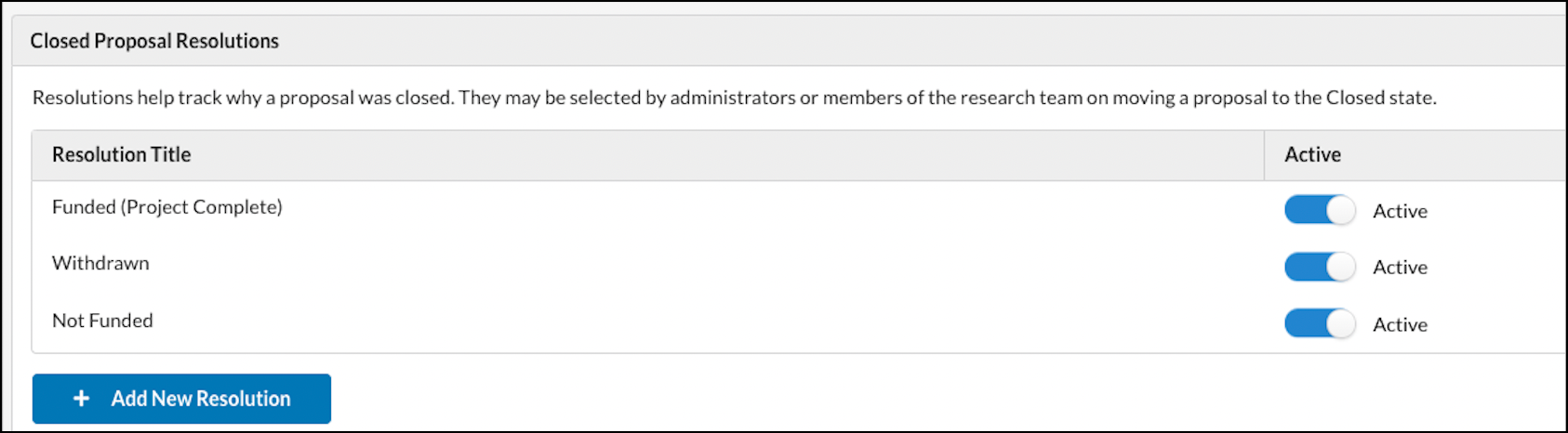
When Proposals, Awards, Subawards, and Projects are closed, researchers must indicate the reason for the closure by choosing a resolution. As a Cayuse SP System Administrator, you can configure the allowable resolutions. You will notice some default resolutions active on the Manage Resolutions page.
Viewing Resolutions
- Click on Products, and then click on Sponsored Projects.

- Click on More, and then click on Manage Resolutions.
- You will see a list of resolutions along with the current status.
Adding New Resolutions
- From the Manage Resolutions page, scroll to the desired section (Proposal, Award, or Project) and click on Add New Resolution.

- Enter a resolution title into the box, and then click on Save.
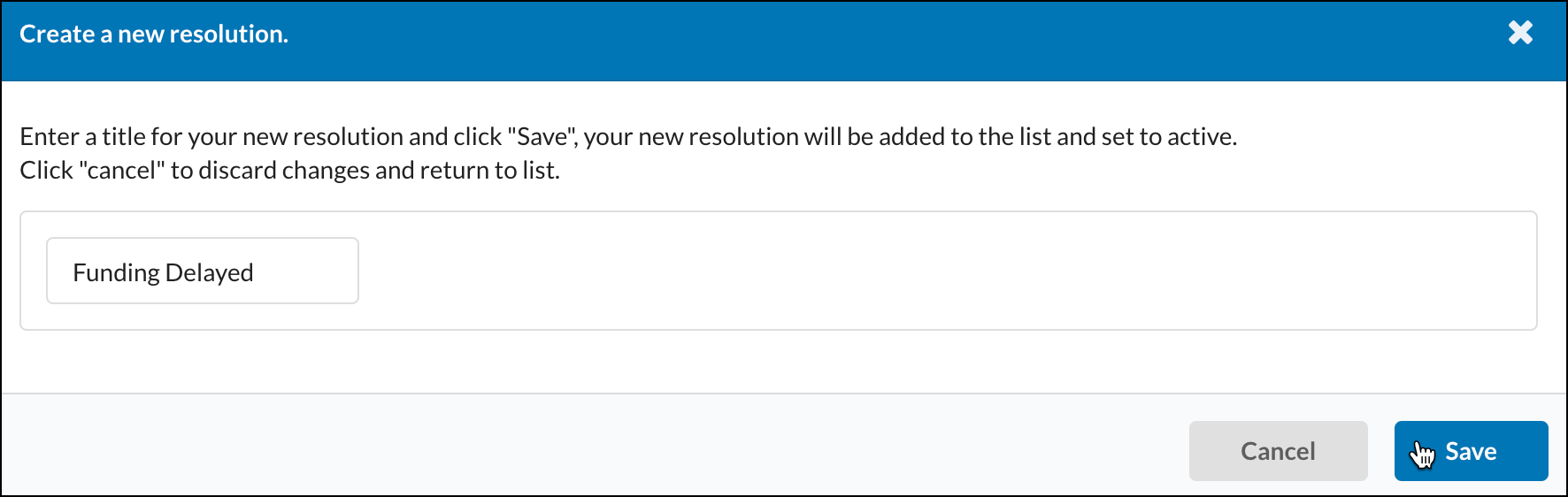
Your new resolution will be automatically marked as Active.
Inactivating Resolutions
To inactivate a resolution, toggle the 'Active' button to the left. The status will now show it is 'Inactive'. To reactivate it, toggle the button the other direction.
.gif)