
The Faculty Profile Report provides a comprehensive report of data recorded for faculty members. This data is drawn from information contained in various modules. The report includes information such as:
- Categories of Salary Sources
- Employees Supported
- Grant Info (if using the Grants Module)
- Equipment Info (if using the Space/Inventory Module) and
- Space Info (if using the Space/Inventory Module)
Before You Begin
These steps must have been completed to ensure that coding parameters are in place to populate this report with these data:
- Salary Sources. Build a column report in the Accounting Module, which controls the display of the Categories of Salary Sources section of the report. (This section breaks down the PI’s historical salary)
- Employees Supported. Set up Employee Groups and assign PIs to the appropriate group within the Personnel Module. (This section displays a list of employees for whom the PI is responsible, along with their titles and salaries)
- Grant Info. Set up the PI in Grants data entry and check the "OS" checkbox on the Faculty Profile Report criteria screen. (Principal and Co-Investigators should be populated in the General tab of the Grant Module Data Entry screen, accessed via File/Grants)
- Equipment Info. Assign a PI ID for particular pieces of equipment within the Space/Inventory Module.
- Space Info. Assign space to PIs within the Space/Inventory Module.
Related References
- Overview of Department Manager Reports
- Generating Personnel Reports—An Overview
- Building a Column Report
- Setting Up Employee Groups in the Personnel Module
- Entering a Pending Grant/Research Proposal
How to Generate a Faculty Profile Report
From the Personnel module, Reports menu, follow these steps to generate a Faculty Profile Report.
- Select Faculty Profile. The Faculty Profile Report criteria selection screen appears. (Learn more about the criteria fields and buttons below.)
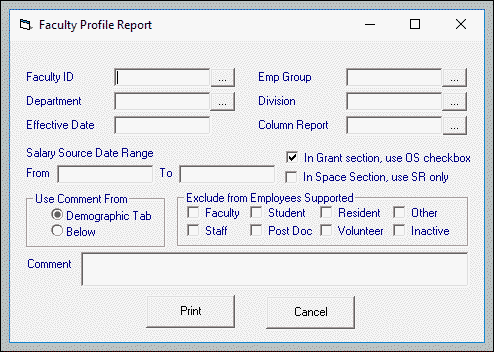
- Verify that In Grant Section, Use OS Checkbox is checked if you wish to see Active and Pending Grants on which the PI is working during the specified date range.
- Select the desired criteria for other fields.
- Select the desired report format from the drop-down menu in the Column Report field.
- Click Print to generate the report, which will appear in a separate window once generated.
- Print or Export the report, as desired. A dialog box appears. Click OK.
- IF you have selected Export, the system will prompt you to designate a file location for the exported file. You will be able to view and manage your exported report there.
Understanding Fields and Buttons in the Faculty Profile Criteria Selection Screen
|
Selection Criteria Field |
Selection Criteria Field Description |
| Faculty ID | Allows the user to select a Faculty ID on which to report |
| Emp Group | Allows the user to select an employee group on which to report |
| Department | Allows the user to select a department on which to report |
| Division | Allows the user to select a Division on which to report |
| Effective Date | Requires user to complete an effective date for the report |
| Column Report | Allows user to select from a drop-down list of available column reports built |
| Salary Source Date Range (From/To) | Requires user to complete the date range for the salary source. |
| In Grant Sections, Use OS Checkbox | |
| In Space Section Use SR Only | |
| Use Command From | Allows user to select whether to include the comment in the Demographic Tab of the Personnel Module or from the comment |
|
Exclude from Employees Supported (select one or more from the choices below) |
|
| Faculty | Allows user to exclude Faculty from the Employees Support section of the report |
| Staff | Allows user to exclude Staff from the Employees Support section of the report |
| Student | Allows user to exclude Students from the Employees Support section of the report |
| Post Doc | Allows user to exclude Post Docs from the Employees Support section of the report |
| Resident | Allows user to exclude Residents from the Employees Support section of the report |
| Volunteer | Allows user to exclude Volunteers from the Employees Support section of the report |
| Other | Allows user to exclude Other Employees from the Employees Support section of the report |
| Inactive | Allows user to exclude Inactive Employees from the Employees Support section of the report |
| Comment | Allows user to produce a comment to be included in the report |
Sample Report
Following is a sample of a Faculty Profile report.
