
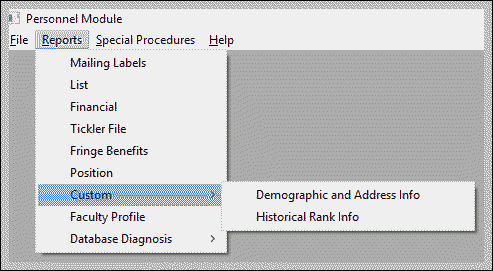
Two types of Custom reports are available in the Personnel Module:
- Demographic and Address Information, and
- Historical Title and Rank Information
Both are available as sub-menus within the Personnel Reports menu. You can select among various formatting options to create a report to meet your specific needs.
Related References
How to Generate a Custom Report
From the Personnel module, Reports menu, follow these steps to generate a Custom report.
- Select the type of Custom report you desire from the Custom sub-menus.
The Custom Report Design screen appears. The field names and buttons differ slightly, depending on which type of Custom report you selected. - Highlight the fields you wish to appear in your report from the Available Fields list and click the right arrow button so that they appear in the Selected Fields list. (An example of the Demographic and Address Information report is shown here.) Each item in the Selected Fields area will become a column in your Custom report.

- Click Criteria. A Custom Reports criteria selection screen appears.
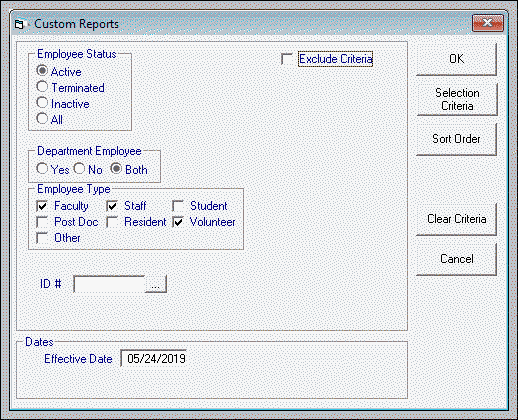
- Select the desired criteria.
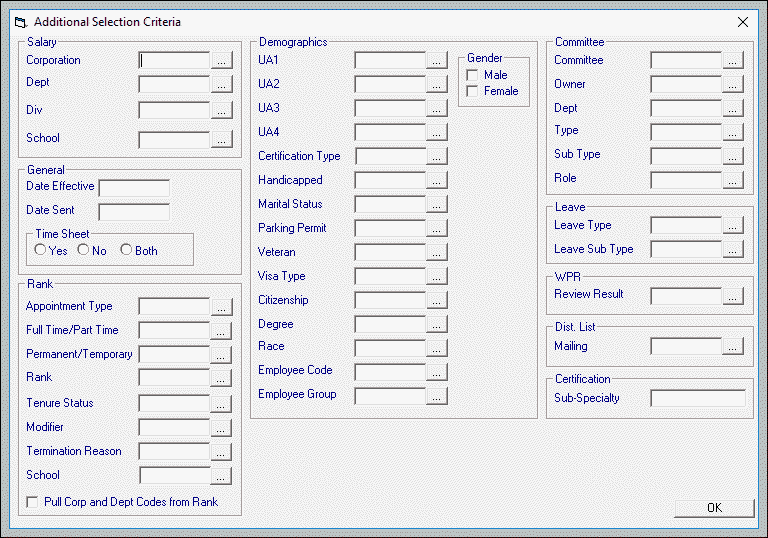
- Click Selection Criteria if you wish to filter your report even further. Select the desired criteria and click OK to return to the previous screen.
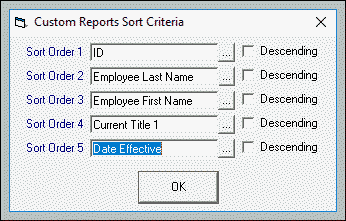
- Click the Sort Order button. A Custom Reports Sort Criteria dialog box appears.
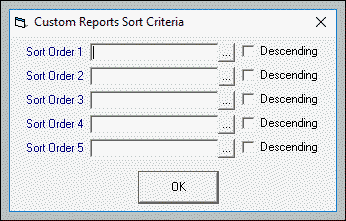
- Select the desired fields from the drop-down menus in the sort order in which you want them to appear in your Custom report.
- Click OK on the Custom Reports criteria selection screen. The Custom Report Design screen should remain.
- Click the Preview button to generate the report, which will appear on the Report Design screen.
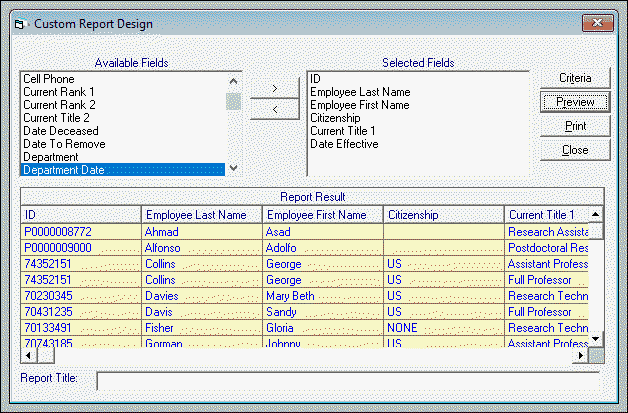
- Type a Report Title and click Print. The report will appear in a separate window.
- Print or Export the report, as desired. A dialog box appears. Click OK.
- IF you have selected Export, the system will prompt you to designate a file location for the exported file. You will be able to view and manage your exported report there.
Sample Report
Following is a sample of a Custom report, formatted by ID/Employee Last and First Names/Citizenship/Current Title 1/Date Effective.
