
Follow these instructions to set up user profiles in the Department Manager Personnel Module.
- Click the Administration icon on the Department Manager system menu that appears in the system tray. A sub-menu appears.
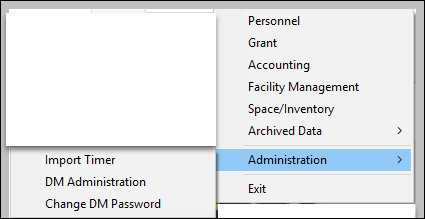
- Click DM Administration to launch the Administration Module.
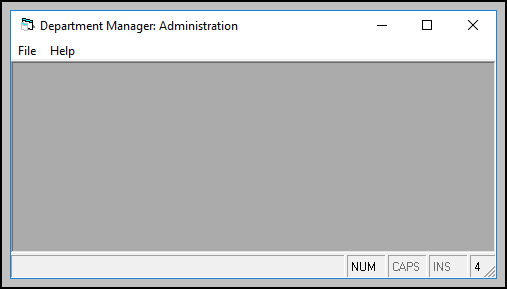
- Click File-User Setup to open the User Setup screen.
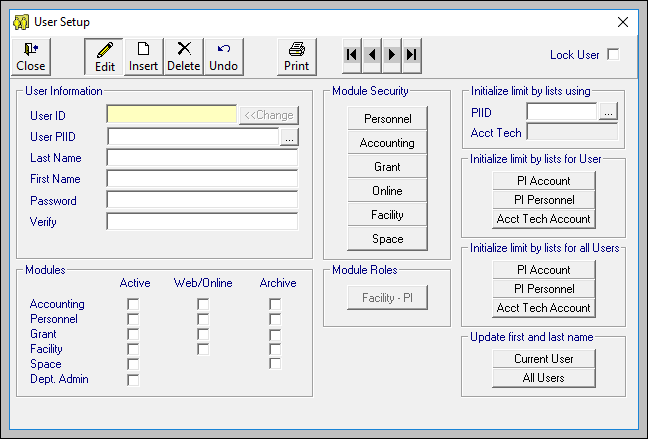
- Click the Insert button on the toolbar. (You will use the Edit button when you simply need to make changes to a user profile.)
- Enter appropriate profile data and password under User Information. We recommend defining the User ID to match the user's Windows login ID. (Enter a PI ID if the user is a Principal Investigator)
- Click check boxes in the Modules section that correspond to the modules that the user will access.
- Select Initialize Limit By List... options. Hover your cursor over the various buttons for explanations of the limits.
- Under Module Security, click Personnel to confer user privileges for this module. For new users, a dialog box appears.
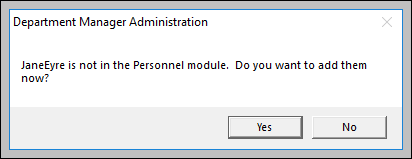
- Click Yes at the prompt. A Security Setup screen appears for the module you have selected. Personnel Security Setup is shown here.
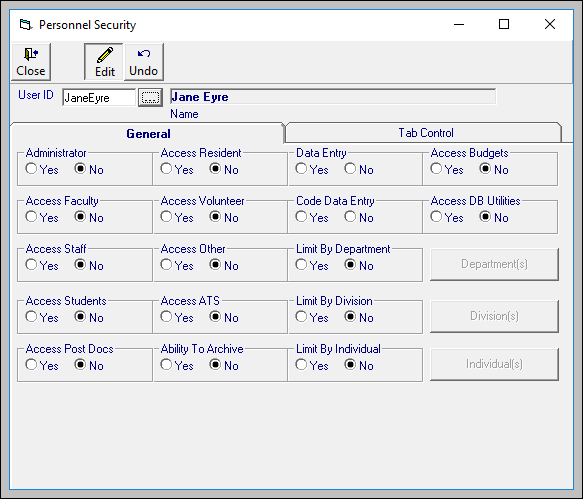
- Set appropriate user privileges for administrative functions and access on this screen. Note that General and Tab Control tabs exist, so be sure to fill out both as needed. (Additional details about Limit By Options and Security Setup fields and buttons follow.)
Click Close when you complete the settings. - Click any additional modules in Module Security for which you want to add this user. Modules that you have already set up will be highlighted. In this example, Accounting is not yet set up.
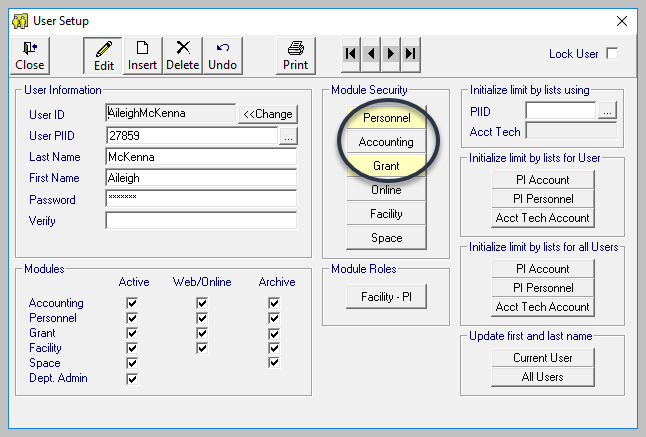
Repeat Steps 8 through 10 for each module you select. - Click Close to exit the User Setup screen.
Understanding Limit By Options on the Security Setup Screen
While working with the Personnel Security Setup screen, you will have the option to set Limits by Department, Division, and Individual. If you select Yes, a corresponding button activates to the right of the radio buttons. In these figures, you can see the differences when Department(s), Divisions, and Individuals are activated and inactivated.


IF you wish to limit a user's ability to view or enter data by Department, Division, or Individual, select Yes and click the corresponding button to the right. A Limit By... screen appears (Limit by Department is shown here).

Select the desired option from the drop-down menu on this screen.
Click Close to return to the Security Setup screen and repeat for each Limit By option that you wish to set.
Understanding Security Setup Fields and Buttons
As you fill out the Security Setup screen, you may find this reference helpful.
|
Personnel Security Radio Buttons |
Options |
Personnel Security Questions/Descriptions |
|
Administrator |
Yes/No |
Do you want the user to have full rights to the software? They would be able to access everything in the software including the security system. This right should be dispensed judiciously. |
|
Access Faculty |
Yes/No |
Do you want the user to be able to access Faculty records? |
|
Access Staff |
Yes/No |
Do you want the user to be able to access Staff records? |
|
Access Students |
Yes/No |
Do you want the user to be able to access Students records? |
|
Access Post Docs |
Yes/No |
Do you want the user to be able to access Post Docs records? |
|
Access Residents |
Yes/No |
Do you want the user to be able to access Residents records? |
|
Access Volunteers |
Yes/No |
Do you want the user to be able to access Volunteers records? |
|
Access Others |
Yes/No |
Do you want the user to be able to access Others records? |
|
Access ATS |
Yes/No |
|
|
Ability to Archive |
Yes/No |
Do you want the user to be able to perform year end closing operations? |
|
Data Entry |
Yes/No |
Do you want the user to be able to enter data in the Personnel Module? |
|
Code Data Entry |
Yes/No |
Do you want the user to be able to enter and modify codes in the Personnel Module (i.e. object codes, account codes, and various personnel codes)? |
|
Limit by Dept |
Yes/No |
Do you want to limit the user's access to a particular department(s)? |
|
Limit by Division |
Yes/No |
Do you want to limit the user’s access to a particular division(s)? |
|
Limit by Individual |
Yes/No |
Do you want to limit the user’s access to a particular individual(s)? |
|
Access Budgets |
Yes/No |
Do you want to limit the user's access to budgets? |
|
Access DB Utilities |
Yes/No |
Do you want to limit the user's access to database utilities? |
What's Next?
Proceed to Understanding Organizational Codes if you are ready to set up codes specific to your organizational structure. You may find it helpful to enlist the aid of central accounting staff to define the structure of various codes and possibly provide spreadsheets with relevant data.