Within Cayuse products, units represent institutions, campuses, colleges, departments, etc. that individuals belong to. As an admin, you can add units to reflect your institution's hierarchy.
Before Getting Started
Please read the following prior to creating a unit.
- Understanding the root unit: Every tenant loads with one unit already in the Unit table. This is the root unit. In the UI it is called the Institutional Root and the Primary Code is 1000 by default. Both the Primary Code and the Name may be changed by the customer. Do not import or update the root unit through HR Connect as it will result in an error. Instead, updates to the root unit can be made through the Admin UI.
- It is best to relay your organization's actual hierarchy when creating and nesting your units. For example, in a typical university, campuses would be beneath the institutional root, colleges would be beneath the campuses, and departments would be beneath the colleges.
Adding a Unit
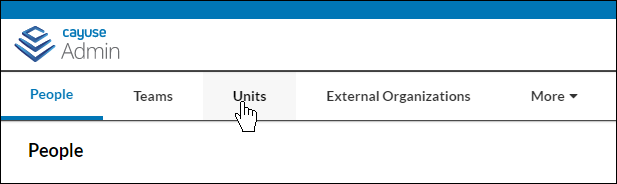
- In the menu, click on Units.
- Click on
 .
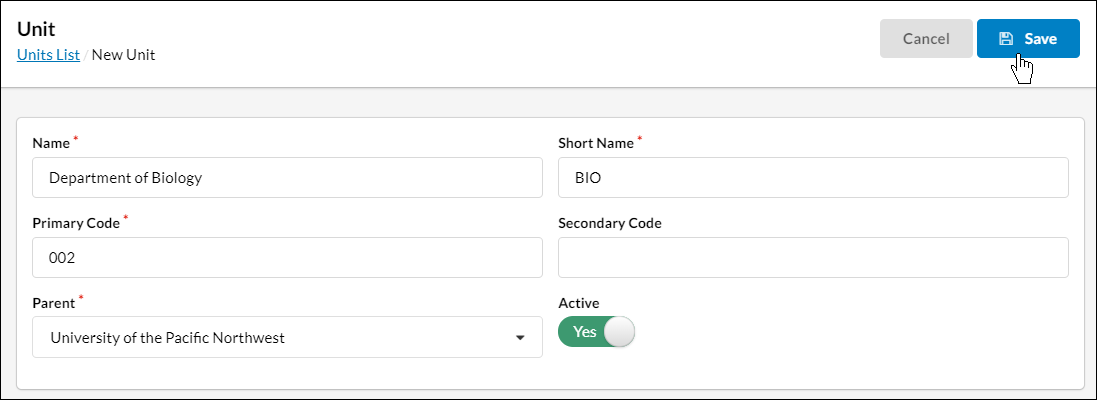
. - Fill out your unit's information. An asterisk indicates required fields. Institution Root will be available as the default base unit, and this cannot be edited. You can nest other units as appropriate.
- Toggle the Active switch to Yes.
- Click Save.
Adding Routing Data to a Unit
For customers using Sponsored Projects 4.0, you are now able to add review routing details to a Unit which can be used by SP when setting up routing rules.
To access this feature you will need to have both RS Admin Administrator & the SP System Administrator Roles.
- In the menu, click on Units.
- Select a Unit
- Click on the "SP Routing Profile" tab on the left menu bar
- Toggle Require Additional Review to Yes
- Use the Unit Required to Review dropdown to search for the Unit that should automatically review all records created at this Unit.
- Note: The unit selected in this dropdown must be on the same hierarchical level or higher than the current Unit. A child Unit can never be set as the reviewer of their parent.
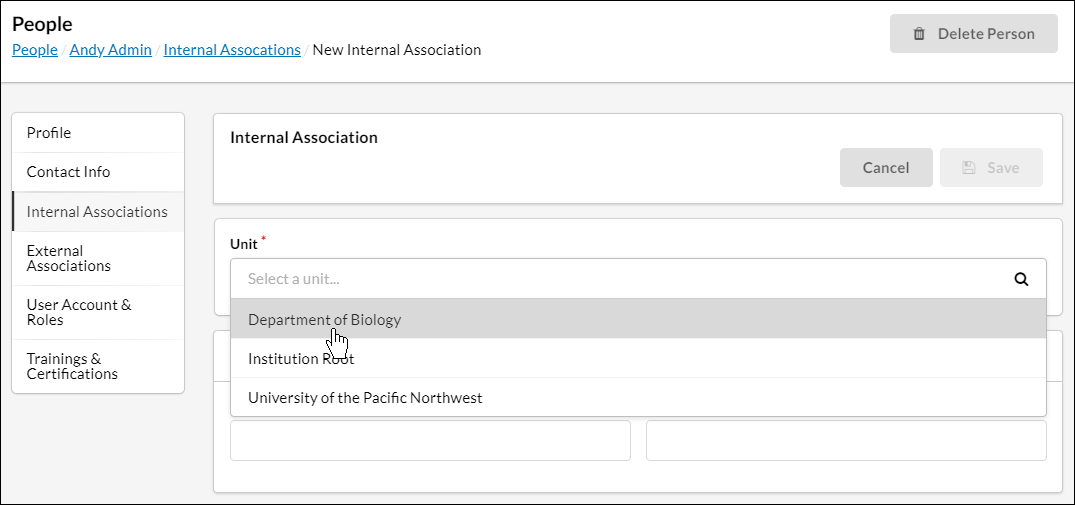
Now, when you are editing an individual's internal associations, the new unit will be available to add.